


The Basics
Introduction
Your internet speed is based on how long your internet connection can download and upload data (bits). This speed is measured in megabits per second (Mbps) and gigabits per second (Gbps) — one Mbps is 1,000,000 bits being transferred per second, and one Gbps is 1,000,000,000 bits being transferred per second. The higher the Mbps or Gbps you see, the faster the internet speed. Just remember that your chosen speed will depend on your specific internet needs.
What is fibre internet and how does it work?
Fibre internet uses fibre optic cables, which transmit data as light, providing significantly faster and more reliable internet connections. Unlike fixed LTE, 5G, and mobile data, fibre internet offers higher speeds, lower latency, and greater consistency, making it ideal for streaming, gaming, and other bandwidth-intensive activities.
Why choose fibre internet?
1. Blazing Fast Speeds: Experience lightning-fast downloads, seamless streaming, and crystal-clear video calls. Fibre internet delivers the speed you need to keep up with today’s digital demands.
2. Cost: Fibre plans are uncapped and unlimited, unlike most affordable Fixed LTE or 5G plans.
3. Reliable Connection: Say goodbye to buffering and dropped connections. With fibre, you get a stable and consistent internet experience, no matter how many devices are connected.
4. Future-Proof Technology: Fibre internet is designed to handle the increasing data needs of tomorrow. Enjoy cutting-edge technology today that’s ready for whatever comes next.
5. Enhanced Online Experience: From gaming to working from home, fibre internet enhances every aspect of your online life, providing a superior experience with lower latency and higher bandwidth.
How do I know which internet speed I need?
The speed you need depends on your internet usage and the number of devices connected. For example, streaming HD video, online gaming, and video conferencing require higher speeds. Use our handy Speed Requirements Guide or Speed Calculator to get a better idea of the right speed for your online lifestyle.
What do I need for home fibre internet?
To get home fibre internet, you need fibre coverage in your area, a fibre line installed at your home, and an active internet package from an Internet Service Provider.
Once your home is connected, you will usually need a fibre box, also called an ONT, and a Wi-Fi router. The ONT connects your home to the fibre network, while the router shares the internet connection with your devices over Wi-Fi or cable.
You will also need a power supply for your fibre equipment. If there is load-shedding or a power outage, your fibre connection and Wi-Fi router will need backup power to stay online.
How do I sign up for home fibre internet?
Signing up for home fibre internet is simple. Start by checking fibre availability at your address. If fibre is available, you can choose a package that suits your household’s needs and complete your order online.
Once your order is submitted, your installation or activation will be arranged. If your home already has a fibre line installed, activation may be faster. If fibre still needs to be installed, an installation appointment may be required.
After installation or activation, your fibre equipment will be connected, and your Wi-Fi router will share the internet with your devices at home.
To get started, check availability at your address, choose your preferred fibre package, and follow the sign-up steps online.
Getting Started
Connecting to Wi-Fi
How do I connect to Wi-Fi using my smartphone or tablet?
- Go to your Wi-Fi settings via the Quick Settings panel or Connections settings.
- Select your network from the list of available networks.
- Enter your Wi-Fi password, which can be found on the white sticker attached to the back or bottom of your router. It may be labeled as “Wireless Security Key / Password,” “Wi-Fi Password,” “Network Password,” or “Network Key.”
- Tap ‘Connect.’
How do I find my Wi-Fi network name (SSID) and password?
- Your SSID (Wi-Fi network name) and password are on the white sticker attached to the back or bottom of your router.
Why can't I connect to my Wi-Fi network?
- Ensure you are entering the correct password.
- Check if your router is powered on and functioning.
- Make sure you are within range of your Wi-Fi network.
- Restart your router if necessary.
How can I improve my Wi-Fi connection?
- Keep the area around the router clear of thick walls, metal objects, and electronic devices that can interfere with the signal.
- Use the 5 GHz band for faster speeds and the 2.4 GHz band for better coverage in larger homes or areas with many walls.
- Keep devices like microwaves, cordless phones, and baby monitors away from your router to minimize interference.
How often should I restart my router?
It is recommended to power cycle or reboot your wireless router every 30 days or whenever you experience unusual behavior to improve speed and stability.
Personalise your Wi-Fi
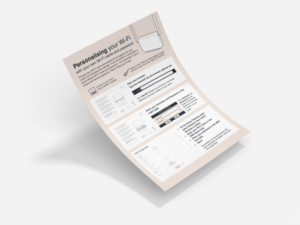
Quick Sheet
A step-by-step guide
How can I change my Wi-Fi name (SSID) and password?
- Connect to your Wi-Fi using a laptop or desktop.
- Open your browser and type the AdminIP (found on the sticker attached to your router) into the address bar.
- Enter your Username and Password (also found on the sticker on your router).
- On the Home Gateway page, select ‘Network,’ then select ‘Wireless (2.4GHz).’
- Enter your new Wi-Fi name in the SSID Name field and your new password in the WPA Key field.
- Click ‘Save.’
Why should I personalise my Wi-Fi name and password?
- Personalizing your Wi-Fi name and password makes it easier to remember and enhances security by using a unique and secure password.
What should I do after changing my Wi-Fi name and password?
Remember to reconnect all devices that were previously connected using your new credentials.
What are some tips for creating a secure Wi-Fi password?
- Use a combination of letters (both uppercase and lowercase), numbers, and special characters.
- Avoid using easily guessable information such as your name, birthdate, or common words.
- Make your password at least 12 characters long.
How do I find my router’s AdminIP, Username, and Password?
These details can be found on the white sticker attached to the back or bottom of your router.
Getting your Package Speeds over Wi-Fi
Many wireless routers are advertised with a certain speed on the box, but that’s not wholly accurate. The advertised speed is tested in a highly controlled lab environment without the day-to-day obstacles that’ll slow your connection down. Walls, distance from the router, and even other devices will stop that wireless connection from reaching its potential top speed. A wireless router in the average home can only expect to reach around 25-33% of its potential speed.
The Wi-Fi compatibility of the device you’re trying to connect with is also important. Older devices are limited by the Wi-Fi technology at the time of their production. Think of it as an older car with an older engine not being able to get to the same speeds as a modern car with a more advanced engine.
Wireless Router's 2.4 GHz vs. 5 GHz Network Bands
Modern routers can communicate with your devices in two different ways: the 2.4 GHz band and the 5 GHz band.
The 2.4 GHz band has a broad reach and isn’t much hindered by physical obstacles like walls. There’s a catch, though–service speeds are pretty slow on 2.4 GHz. This is because most household objects operate on this frequency. Things like microwaves, baby monitors and game controllers all clog up your router’s communication with the device you’re trying to use, and this slows it down.
On the other hand, the 5 GHz band can process a lot more information and is less clogged. This makes the 5 GHz band a much faster network to operate on. Unlike 2.4 GHz, physical obstacles do affect this connection much more. The 5 GHz band operates best when there’s a “line-of-sight” between the router and a device.
Connecting to the 5 GHz Band
Your device must be close to the router (within range) and support 5 GHz connectivity to detect and connect to that band. Many newer (from 2013 forward) laptops, smartphones, tablets and smart TVs have built-in 5 GHz support. It’s always best to check with the manufacturer’s website or user guide to confirm the device’s available connection options.
When to use the 5 GHz vs 2.4 GHz
You should connect to the 5 GHz band when you’re within line of sight of your wireless router or if the signal strength (number of bars) is equal to or better than your 2.4 GHz network. Most devices will connect to the first network it encounters instead of picking the one with better performance, so you will need to manually select it from your device settings to get the best experience.
Wi-Fi Connection Dropping
This usually happens when the signal strength to the router is weak, or something is interfering. The best way to solve for this is to move closer to the router or add Wi-Fi extenders into your home network to improve the overall wireless range.
Wi-Fi will also drop from time to time if the router has been running for a long time without being restarted. We recommend you reboot your router by turning it off an back on, also known as power cycling.
- Unplug the power cable from the router or the wall plug.
- Wait 30 seconds.
- Plug the power back in.
- Wait for the router to restart and automatically reconnect to the Internet.
This process may take up to 3 minutes, and all lights will turn back on.
Checking for Service Outages
Service outages can be frustrating, and we understand how important it is to stay connected. Our top priority is to minimise the impact of any service disruption on our customers. To achieve this, we continuously monitor our network and strive to resolve issues swiftly and efficiently. Identifying the cause of an outage is the first crucial step in restoring your service. Whether the disruption is due to network issues, maintenance, or technical problems, we are committed to keeping you informed and getting you back online as quickly as possible.
How can I check if there is a service outage in my area?
- Visit the network status page. We monitor all services 24/7 and will post information here in the event of a service disruption.
- Install the MetroFibre mobile app and sign up for push notifications. Our app is available on Google Play and the App Store.
What are the common causes of service outages?
- Network disruptions: Problems affecting the physical infrastructure, such as natural disasters like storms or floods, power infrastructure, or damaged cables.
- Maintenance: Planned maintenance to the physical infrastructure or system upgrades may temporarily affect your service. MetroFibre will communicate via email or SMS if planned maintenance is upcoming in your area.
- Technical issues: Equipment or software malfunctions, server errors, or software bugs that affect internet service.
How will MetroFibre inform me about planned maintenance?
MetroFibre will communicate via email or SMS if planned maintenance is upcoming in your area.
What should I do if I experience a service outage?
- First, check if there is a known outage in your area by visiting the network status page
- If there is no information about an outage and you are still experiencing issues, you can contact our support team through the My MetroFibre Portal, live chat on our website, using the MetroFibre App, or by calling 087 151 400.
How frequently is the network status updated?
The network status is monitored and updated 24 hours a day, seven days a week. In the event of a service disruption, we’ll post information as soon as possible to keep you informed of the current status.
Can natural disasters affect my MetroFibre service?
Yes, natural disasters like storms or floods can cause network disruptions by damaging the physical infrastructure. We work diligently to restore service as quickly as possible in such events.
What steps are taken to minimise the impact of outages?
We monitor the network 24/7 and provide timely updates via our network status page. For planned maintenance, we communicate in advance via email or SMS to keep you informed.
What information will be provided during a service outage?
During a service outage, we will provide details about the nature of the disruption, affected areas, and estimated time for service restoration on the network status page.
What should I do if there is no outage but I am still experiencing issues?
If there are no reported outages in your area, but you’re still experiencing issues, try the following:
- Check your router
- Make sure your account is up to date, and review your payment information
- Log a support ticket for help with troubleshooting your connection
Managing your Account
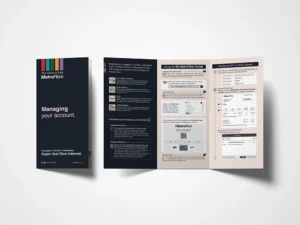
Managing your Account
When is the payment due date for my MetroFibre account?
Payments are due by the 4th of each month. MetroFibre operates on a pre-paid basis, so you pay for each month’s service at the beginning of that month.
What should I use as the payment reference?
Always use your MetroFibre Customer Account Number as the payment reference. Do not use ‘MetroFibre’ or any other text. Your account number starts with three letters followed by numbers (e.g., SUE122) and can be found on your invoice or statement.
What happens if I use the wrong payment reference?
If you use the wrong reference, your payment may not be allocated to your account correctly, causing delays and potential service interruptions. Always use your MetroFibre Customer Account Number to ensure timely and accurate processing.
What payment methods are available?
- EFT / Direct Deposit: Log into your online banking, add MetroFibre as a beneficiary, and use your account number as the reference.
- Debit Order: Set up a debit order for automatic monthly payments.
- Pay@: Make instant payments online using the link sent via SMS or Email.
- Card Payments: Use your debit, cheque, or credit card at selected MetroFibre Experience Stores and branches.
How do I make a payment using the My MetroFibre Portal?
- Log in to the portal with your MetroFibre account credentials.
- Click on the ‘Pay Now’ button in the Billing window.
- Choose your preferred payment method from the displayed options.
What are the bank details for making a payment via EFT or Direct Deposit?
- Account Name: MetroFibre Networx (Pty) Ltd
- Bank Name: ABSA Bank
- Branch Code: 632005
- Account No.: 4093072466
- Recipient Reference: Always use your MetroFibre Customer Account Number.
What are the payment options available on the My MetroFibre Portal?
Using Pay@, you can make instant payments online using your Debit/Credit card, Instant EFT, Zapper or Snapscan
Payment Tips
- Check your monthly statement and invoice and contact us if you don’t receive it
- Always make sure that you pay the amount due
Internet Speed Explained
What factors affect my internet speed?
Internet speed can be affected by several factors including your device’s connection type (Ethernet vs. Wi-Fi), signal strength, distance from the router, and interference from walls and other electronics.
Is Ethernet faster than Wi-Fi?
Yes, being hardwired to Ethernet is generally faster and more reliable than using Wi-Fi due to reduced interference and a more stable connection.
Why is my Wi-Fi slower than my Ethernet connection?
Wi-Fi speeds are affected by factors like signal interference, distance from the router, and the number of devices connected. Ethernet provides a direct, stable connection with fewer variables affecting speed.
How does signal strength affect my Wi-Fi speed?
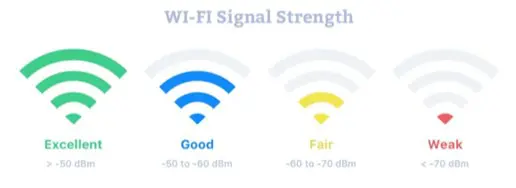
A strong signal allows for faster speeds. However, the distance between your device and the router, as well as obstacles like walls and other electronics, can interfere with the signal and reduce its strength.
How can I improve my Wi-Fi connection?
- To get the best results, test from a distance of 4-6 meters away from the router with as few physical obstructions as possible.
- Use the 5 GHz band for faster speeds, ideal for activities like streaming and gaming. Use the 2.4 GHz band for better coverage, especially in larger homes or areas with many walls.
What is power cycling and how does it help?
Power cycling involves restarting your router to improve speed and stability. Unplug the power cable, wait for 30 seconds, and then plug it back in. This process may take up to 3 minutes for the router to reconnect to the internet.
It is recommended to power cycle or reboot your wireless router every 60 days or whenever you experience unusual behavior.
How do I test my internet speed?
Go to www.speedtest.net and run the test when no other device is using the internet connection for the most accurate results. To get the best results, test from a distance of 4-6 meters away from the router with as few physical obstructions as possible.
What is the difference between download and upload speeds?
Download speed is how fast you can receive information from the internet, like loading websites or streaming videos. Upload speed is how fast you can send information to the internet, like posting photos or sending emails.
What are symmetrical speeds and how do they benefit me?
Symmetrical speeds mean you get the same download speed as upload speed, which is beneficial for activities like video conferencing and uploading large files. With the exception of our 1Gbps package, MetroFibre offers symmetrical speeds.
What do the terms ping, jitter, and latency mean?
- Ping: The time it takes for a server to respond to a request from you and back to you.
- Jitter: The variation in delay of network packets as they move across the internet. High jitter can cause stuttering in online gaming and choppy audio or video.
- Latency: The time delay between sending a request over the internet and receiving a response. Lower latency is better for activities requiring quick reflexes, like online gaming and video conferencing.
How can I minimise latency?
Use an Ethernet connection whenever possible to reduce latency. If using Wi-Fi, choose the 5 GHz band and minimise the distance between your device and the router.
How can I minimise jitter?
- Use an Ethernet cable for a stable connection.
- If Wi-Fi is the only option, use the 5 GHz band and move closer to the router.
- Restart your wireless router to reconnect to the least congested channel.
How does latency affect online activities?
Activities that require quick response times, such as online gaming, live streaming, and video conferencing, benefit from lower latency. High latency can cause delays and reduce the quality of the experience.
MetroFibre Go
What equipment do I need to use fibre internet services?
We provide all the basic equipment required to enjoy your fibre connection. This equipment is referred to as the Customer Premises Equipment (CPE) and consists of:
- A Termination Point (TP) or Fibre Installation Point – the point of entry of the fibre network into your home. It is usually a white box on the wall near a power outlet installed by the Fibre Network Operator in your area.
- An Optical Network Terminal (ONT) – connects to the TP with an optical fibre cable. It translates light signals from the fibre optic line from your TP into electronic signals that your Wi-Fi Router can read. Also supplied by the Fibre network operator.
- Wi-Fi router (Wi-Fi Router) – connects to the ONT via a network cable and transmits your internet signal wirelessly in your home. The router needs to be connected to the ONT for us to provide a service. Supplied by the Internet Service provider.
Additional equipment can be used such as Wi-Fi mesh and range extenders to improve Wi-Fi signals in your home. We advise connecting streaming devices such as computers, smart TVs, media players, etc. via network cables to the router for best results.
What influences my wi-fi coverage?
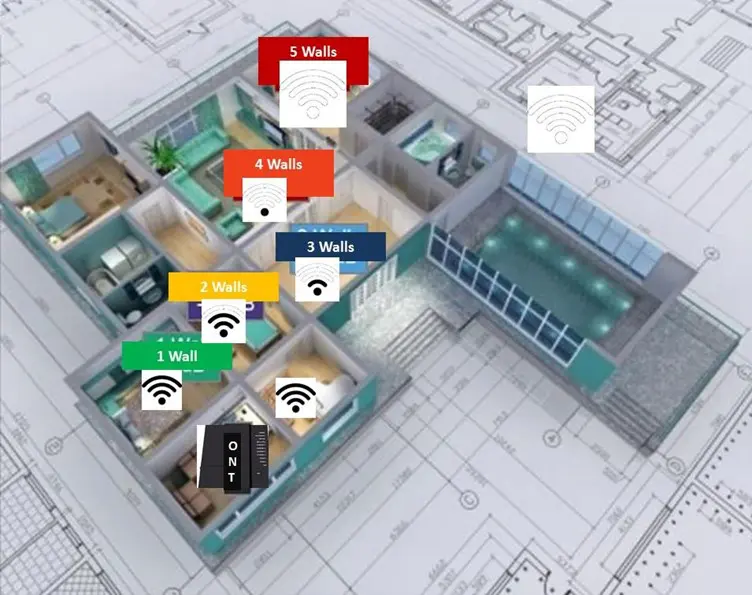
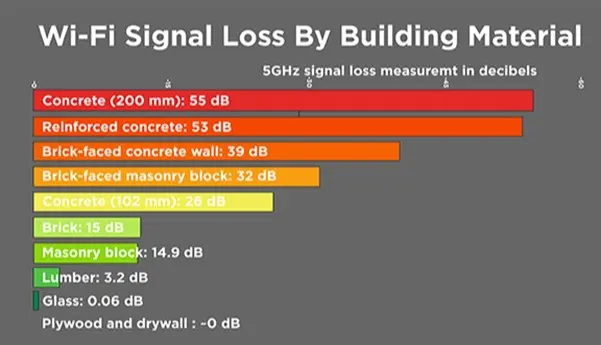
Wi-Fi signals experience attenuation due to distance from their source, just like any other radio. This signal attenuation subsequently causes the radio to be less effective and throughput suffers. Eventually, connectivity is lost when the signal becomes too weak. There are essentially two factors that affect signal attenuation between the access point and the client, and those are range (distance), and physical obstructions such as thick walls, glass, mirrors, and other interference from items such as microwaves, baby monitors, two way radios, sound bars and any other devices operating on the 2.4GHz frequency.

Range
The distance or range which can be tolerated between an access point, such as the Wi-Fi Router, and any client device is affected by several factors. Some of these factors are built into the hardware of the receiving and sending devices, such as power amplifiers on transmitters to boost power, and low noise amplifiers on the receivers to make them more sensitive. An overly sensitive receiver picks up more interference, so there is a balance point where transmit power and receiver sensitivity are optimised for a specific application in the typical home.
The figure below shows a diagram of a typical single storey home, with indicators showing what strength of Wi-Fi signal can be expected.

How will I know when my router has been booked for delivery?
Your router is booked for delivery once your fibre line has been installed and/or activated by the Fibre Network Operator (FNO). You’ll receive an email with your delivery address and waybill number once this has happened. You’ll be able to track the delivery using that waybill number here: CGN Logistics Online Tracking.
How do I perform a speed test?
To test your line speed, please follow the steps below:
- Go to http://speedtest.net or alternatively try http://speedtest.mybroadband.co.za/
- Run the speed test with your PC connected to the Wi-Fi Router via a network cable and make sure all other devices are disconnected from the Wi-Fi Router.
- The above link and method will give you the most accurate results as well as a true reflection of your current speed.
- Close ALL applications using data before running the speed test. This includes Dropbox, Google Drive, synchronisation for update purposes, and others.
I’m connected but don’t have internet — what can I do?
First, check that your Optical Network Terminal (ONT) and router are powered on. If they are, then make sure all cables are properly connected and that both the equipment and cables are undamaged. A quick restart often helps – switch both the ONT and router off, wait a few seconds, and turn them back on.
If you’re still having issues, log a support ticket by emailing [email protected] with your MetroFibre Go account details and a short description of the issue.
I’ve received my router - how do I set it up?
Follow the steps listed in the guide on how to set up PPPoE from your Internet Service Provider (ISP):
Your PPPoE details should have been emailed to you. If not, please email [email protected] to request them.
How do I log a ticket with MetroFibre Go Support?
To report service-related issues, email [email protected]. You’ll receive an automated response with a unique ticket number. Please reference this ticket number in a future communication regarding your service issue.
Can I send a WhatsApp to MetroFibre Go Support?
Yes. Send a message to 087 151 4000 and the Go Support team will assist you.
Zyxel router manual and user guide
You can find it here:
What is the SLA or turnaround time for my ticket to be resolved?
MetroFibre Go operates on a best-effort basis. First-line support typically responds within 12–24 hours, depending on the severity of the issue. In the event of technical fibre breaks, full restoration may take longer than 48 hours, depending on the Service Level Agreement (SLA) of your Fibre Network Operator (FNO).
Is this a prepaid service? / What does prepaid mean?
You pay at the beginning of the month for that month’s service, i.e., you will be invoiced the first of September for your September subscription fee. Pay before you use.
Where can I view and download my invoices and statements?
Your invoices and statements are available on your customer portal and are immediately available upon generation. Standard invoices are generated between the 25th and the last day of the month for the following month’s subscription fee.
When will I get my first invoice and when is it due?
Within 7 days of your fibre line being activated by your respective Fibre Network Operator, your first invoice will generate a pro-rated amount of your monthly subscription fee.
The pro-rated amount is calculated from the date of account activation until the end of the activation month. This pro-rated invoice is only due when your first full invoice is due as per the payment terms dependent on your selected payment method i.e., if your account is activated on the 15th September, your pro-rated invoice will be from the 15th September to the 30th September and will be due at the beginning of October together with your full October invoice.
**NB: Account activation is not initiated or dependent on data usage.
Why is my first payment more than my monthly subscription fee?
Your first ever payment includes your pro-rated amount of your activation month as well as your first full subscription fee for the following month. If your activation month is September, your first payment will be due in the beginning of October and will include your September pro-rated amount as well as your full October subscription amount.
How do I pay my invoices?
We currently offer two payment methods, namely; EFT and Debit Order.
If you opt in for a Debit Order, the Debit Order will be actioned during the course of your requested Debit Order date. Bear in mind, that if your Debit Order date falls on a weekend or public holiday, it will only be actioned on the first following business day. MetroFibre Go currently offers the following Debit Order dates: 1st, 5th and 15th of the month.
If you wish to opt in for a Debit Order, please request a Debit Order mandate form from [email protected].
If you opt for EFT payments, your payment is due by the 5th of every month. This means you need to pay your subscription fee for that month’s service by the 5th of every month. Please include your MetroFibre Go account holder name and account number as reference. Your MetroFibre Go account number can be found on your invoice, statement and customer portal i.e., JohnDoe123456789.
How do I update my banking details or change my debit order date?
Please email [email protected] or call 087 151 4000 to update your details. Your Finance related query will be attended to during standard working hours. Please note that all changes will only take effect the following month.
Why is my service suspended?
MetroFibre Go reserves the right to suspend your service due to non-payment. Billing of all fees and charges will continue during your suspension period.
If you opted in for EFT payments, this might mean that MetroFibre Go was unable to allocate your payment by the due date. This may be due to a late deposit made or incorrect references used.
Alternatively, if you opted for Debit Order, this may mean that your Debit Order was unsuccessful.
How do I reinstate my service?
To reinstate your service, you have to make an EFT payment for the full outstanding balance regardless of your chosen payment method.
Proof of payments must be sent to [email protected] in order for the service to be unsuspended.
Please note that services are unsuspended as soon as possible.
If I have any other finance enquiries, who can I contact?
Please direct an email to [email protected] or call 087 151 4000.
How long does it take to get fibre?
The timeframe depends on your availability, as well as the fibre network provider’s operational scheduling. It can take from 15 working days to 6 weeks depending on the complexity of the build into your unit/home and the availability of the fibre network operator’s contractors. Please note that we cannot guarantee the delivery period of fibre as this is network dependent. Should you cancel your order with us after installation has started, you will be liable for installation and activation costs.
If you live in an estate which already has fibre infrastructure, the ONT will generally be activated within 3 to 7 working business days after installation. Please note that the installation of a physical fibre and a fibre access point into the residence is not included in this period.
What is included in the amount I pay every month?
All fibre packages are bundled. It includes the price for both your uncapped data and the line rental. All our prices are inclusive of VAT. Take note that your uncapped and unshaped service is subject to a Fair Usage Policy (FUP) as set out in our Terms and Conditions.
How do I change from another ISP to MetroFibre Go?
If you have an existing service on fibre with another ISP, follow the steps below:
Step 1 – Place an order with MetroFibre Go via our website.
Step 2 – Contact your current ISP and notify them that you wish to change to another ISP. Ask them to cancel their service and release your fibre line. Ask them to provide you with the service number for your line (Make sure that they do not cancel your line with the network provider as this will incur extra costs for you).
Step 3 – Provide us with the service number you received from the ISP. We will then request to provide a service on the line.
Note:
- Your previous ISP has the right to refuse release of the line until all funds owed to them are paid.
- The standard notice period for cancelling a service with an ISP is 30 calendar days.
- If you have an email service with your current ISP, ensure that you make the necessary arrangements before your service ends. (We recommend that you sign-up for a free Gmail account as it is not dependent on your choice of ISP)
How do I upgrade, downgrade or cancel my service?
Upgrade and downgrade terms are dependent on the network providers.
You can upgrade, downgrade or cancel your service by either logging into the profile that you created when signing up with MetroFibre Go. Alternatively, by sending a request to [email protected] stating what you would like to do.
- All requests usually take between 1 to 2 working days to be processed.
- Upgrade requests may take up to 24 hours to take effect.
- We need 30 days’ notice for downgrades and cancellations.
How do I log into my client portal?
Go to the MetroFibre Go Client Portal here and log in using the email address registered to your MetroFibre Go account. If it’s your first time, click “Forgot Password?” and enter your email. You’ll receive a link to create your own unique password – check your Junk folder if the email doesn’t appear.
How do I get fibre in my home?
- We have an easy 3-step solution for placing an order:
Step 1 – Check if you have fibre coverage.
Step 2 – Select the package speed you want.
Step 3 – Provide us with your applicable information and click submit to place the order. To ensure the kids are not going wild with your credit card, we give you a call to confirm the order.We will then place an order for installation and activation with the relevant network provider in your area, who will install a fibre access point in your home (also referred to as a Termination Point or TP). The network provider will also install an Optical Network Terminal (ONT) in which your Wi-Fi Router will be plugged in. Your Wi-Fi Router will be delivered by courier and we will help you to connect and activate your service.
What is the difference between fibre, DSL, and LTE?
On a technical level, fibre uses the transmission of light signals through glass fibre cables. DSL sends electrical signals along copper cables. LTE sends wireless signals between cell phone towers on specific wireless frequencies.
Fibre is capable of much higher speeds than DSL (DSL services come in flavours of ADSL and VDSL with the latter being the latest version capable of speeds up to 40Mbps). Fibre can reach up to 1000Mbps, depending on the package you selected from the services available. LTE is capable of similar speeds to fibre but at a much higher cost for data because you pay for data not speed which is uncapped. Both LTE and DSL are affected by weather conditions. DSL is particularly affected by lightning strikes (and when copper thieves strike).
Because fibre makes use of transmission at the speed of light, the signal between points is much faster than DSL and LTE. Therefore, fibre has a much-reduced latency leading to a better online experience. Reduced latency generally affects the speed of downloading emails and files, loading websites, streaming video’s, etc.
What is shaping, throttling and fair usage?
Shaping refers to selective speed restrictions. These restrictions can be applied for specific periods of time or specific use applications (such as downloading large files). Shaping generally occurs during peak periods when networks are under strain.
Throttling refers to the reduction of line speeds once a given threshold is reached. Commonly, a line will be throttled due to excessive use in a calendar month for the remainder of said month.
The internet is open for anyone, but the infrastructure to provide internet services struggles to keep up with demand. To ensure that all customers have the same opportunity to enjoy an online lifestyle, we look at fair usage. A Fair Usage Policy (FUP) is based on the network capabilities and sets out what constitutes fair usage for each package available. You can view our FUP in our Terms and Conditions.
Symmetrical vs asymmetrical services?
The symmetry of the line refers to how download speeds relate to upload speeds. With a symmetrical line, your download and upload speeds are the same. If you select a 50Mbps service, you will have 50Mbps download speed and 50Mbps upload speed. If you select an asymmetrical service of 50Mbps, you will have 50Mbps download speed but your upload speed will be lower.
The symmetrical nature of the line is determined by the network provider.
What do I do if I have any other questions?
Please contact MetroFibre Go via one of the following channels:
- Telephone: 087 151 4000
- Email: [email protected]
- Log in to your client profile on the website to submit a query.
Super fast fibre internet.How much speed do I need?
Finding the perfect internet speed can be challenging, especially with so many devices and activities competing for bandwidth. Whether you’re streaming movies in 4K, gaming online, or simply browsing the web, the right speed can make all the difference.
SpeedRequirements Guide
To help you make an informed decision, we’ve categorised different internet speed ranges into four easy-to-understand levels. These categories—Essential, Standard, Enhanced, and Premium—are designed to match various household sizes and usage needs. Explore the table below to see which speed range best suits your lifestyle, ensuring a smooth and reliable internet experience for everyone in your home.
Usage / Activity
Essential
20-45Mbps
Standard
45-75Mbps
Enhanced
75-250Mbps
Premium
250-1000Mbps
- Connected Devices
- Email & Browsing
- Video Calls
- HD Video Streaming
- 4K Video Streaming
- Online Gaming
- Streaming own gameplay